AI Checker
Plagiarism Checker
Grammar Checker
Content Quality
Guideline Checker
Readability Checker
Fact & AI Hallucination Checker

Extensions

These extensions can also help with consistency. When teachers use the same extensions across similar tasks — whether that’s grammar checks, quiz generation, or AI detection — it can help standardize the process. This can give them confidence that they’re being fair to students by applying the same process to everyone’s work.
Ready to start teaching with AI without leaving the browser? Here are the five best AI Chrome extensions for teachers.
Pros:
Cons:
Pricing: To learn about pricing, visit Originality.ai’s pricing plans
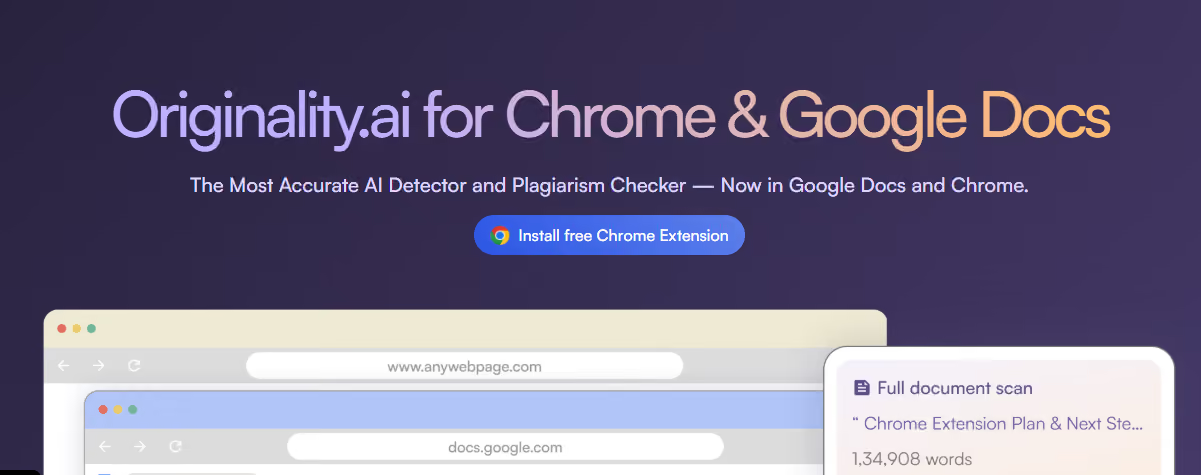
The Originality.ai Chrome extension is the best AI detector for teachers who want a faster way to check student work for AI-generated content and plagiarism. It enables educators to bring Originality.ai’s Plagiarism Checker and AI Checker into their Chrome browser, where they may already be reviewing student essays and assignments in Google Docs anyway.
One of the extension's biggest strengths is that it allows teachers to review student work from multiple angles (e.g., AI usage, plagiarism, writing replay, etc.), which can go a long way in reducing false positives.
For example, if a teacher scans a student's essay in Docs and it shows a “Likely AI” score, they can then move to the Writer Replay video to take a closer look at the student’s writing process. This gives them multiple reference points before deciding how to handle the situation.
However, it doesn’t offer capabilities for all teaching aspects, so for tasks like quiz creation or grading support, teachers will need to use a different tool.
Pros:
Cons:
Pricing: Free download, with Pro subscription from $12/month (billed annually)
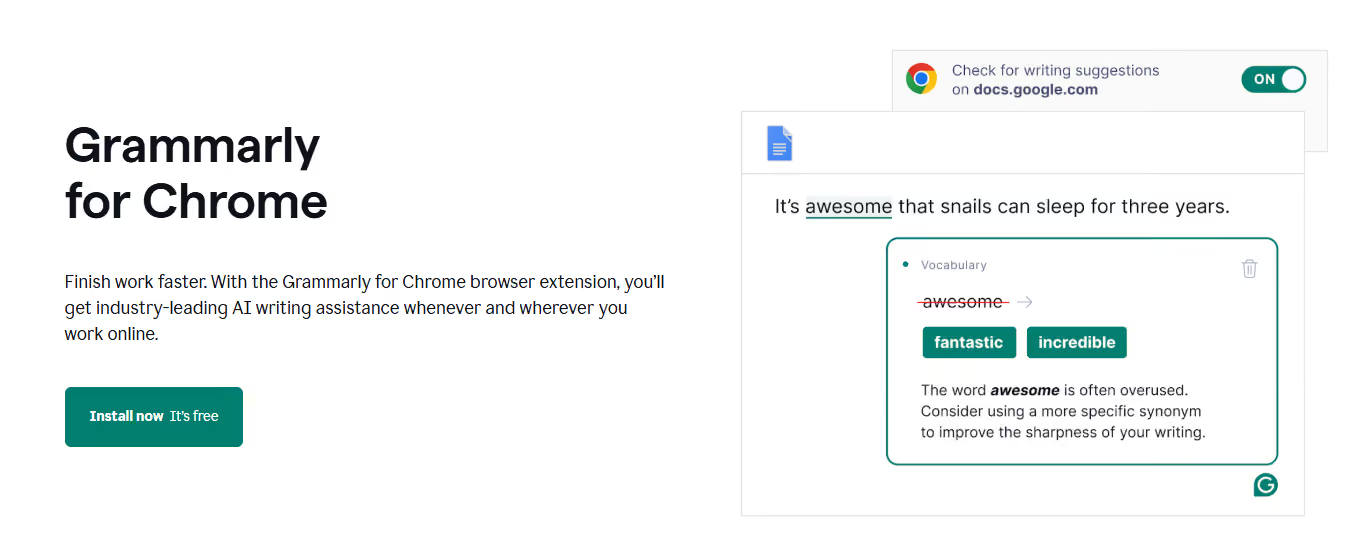
Grammarly’s Chrome extension provides teachers with the grammar, spelling, clarity, and tone corrections it’s known for directly in the browser. Compatible with tons of apps and websites, teachers can take advantage of its real-time suggestions just about wherever they’re writing online, whether they’re typing emails in Gmail or giving students feedback in Docs.
With its AI writing feature, Grammarly’s extension can now also help with routine drafting and rewriting tasks. So, rather than just proofreading writing, teachers can use Grammarly as a broader writing assistant.
Pros:
Cons:
Pricing: Free for teachers, custom pricing available for schools and districts
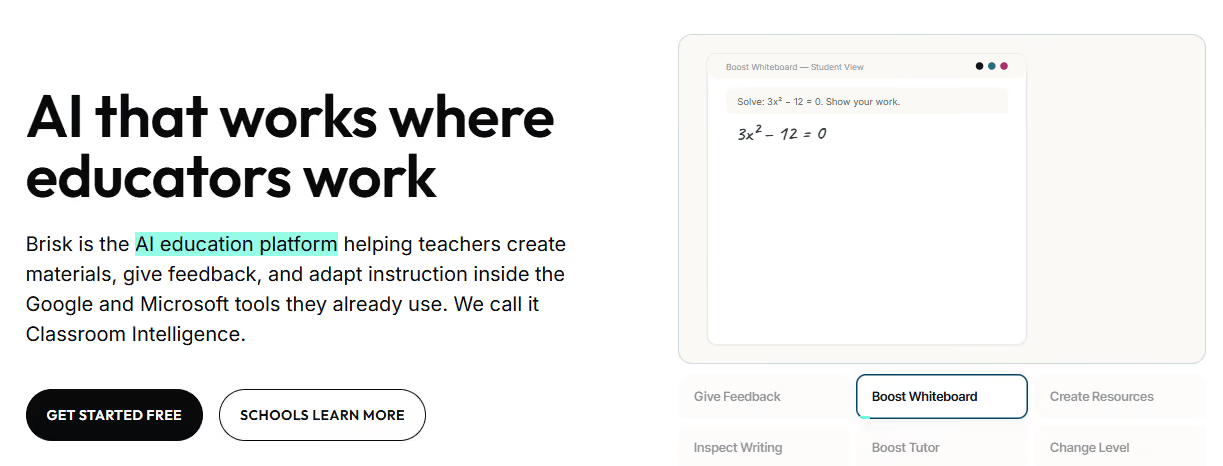
Brisk Teaching’s Chrome extension doesn’t just help teachers with one aspect of their workflow — it covers several. It can help them move between lesson planning, resource creation, differentiation, and student support, all within the browser.
Sure, taking advantage of all the different features may require a bit of a learning curve. But for educators who want a jack-of-all-trades AI teaching assistant to use throughout their workday, Brisk Teaching fits the bill.
Pros:
Cons:
Pricing: Free download, with Pro subscription at $17/month (annually)
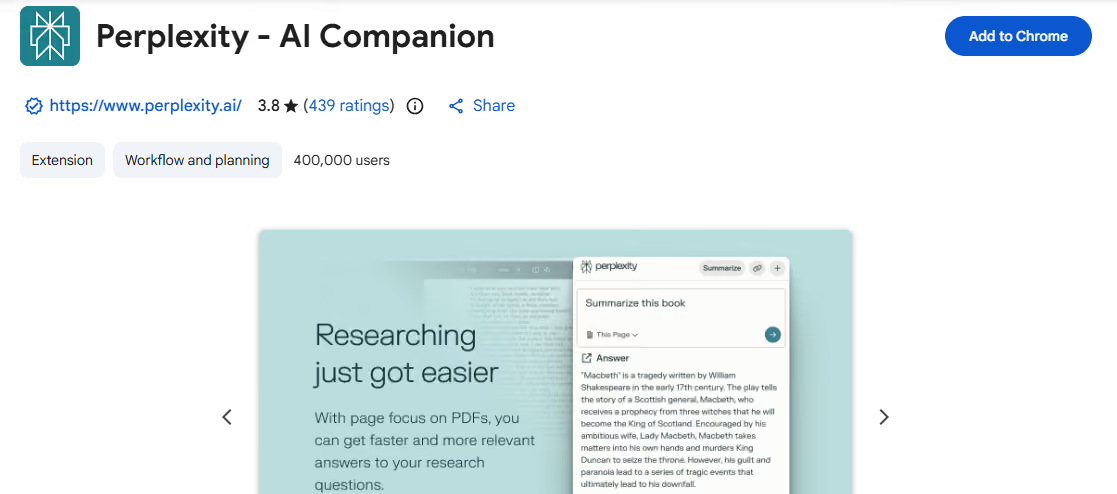
Unlike some of the other more education-focused Chrome extensions on our list, Perplexity AI Companion is more of a general research assistant. With its fast, cited responses to queries, it can help teachers find background information and references for lesson planning.
It can also make webpages easier to understand. Teachers can use Perplexity to summarize pages and quickly assess whether they’re worth reading further, or ask follow-up questions directly in the browser if they’re unsure about something they’ve read.
Pros:
Cons:
Pricing: Free download, Unlimited plan from $59.40/year per individual
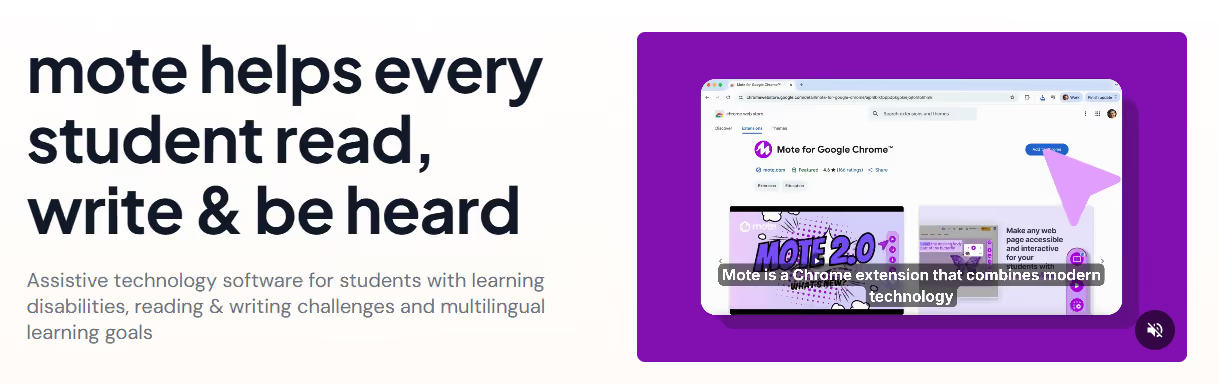
Mote’s Chrome extension can be a good fit for teachers who want to make digital feedback more personal and accessible for students. Its translation, text-to-speech, and speech-to-text features allow students to listen rather than read material, understand feedback in other languages, and respond with speech instead of writing.
Mote is especially known for its audio features, which allow teachers to record short voice notes directly in student documents or presentations. With the help of AI, these notes can even be translated and transcribed, saving teachers time and making feedback more accessible for students.
There’s no doubt that AI Chrome extensions can be powerful time-savers, but they aren’t perfect. One of the major limitations is accuracy.
While many tools can handle routine tasks like grammar checks or quiz generation, they may misinterpret nuanced writing or subject-specific content. Teachers, therefore, must still review all results extremely carefully before relying on them.
Privacy and security are also important considerations. Some extensions process student work through external servers, which can raise concerns about how they store data and whether their processes comply with education privacy standards. So, before adopting an extension, it’s essential to review its privacy policy.
Learn more about how Originality.ai treats your content.
AI Chrome extensions can make a real difference for teachers looking to save time and improve efficiency on their everyday work tasks. They’re especially useful for repetitive work, such as research, planning, feedback, accessibility support, and academic integrity checks.
However, one thing these extensions don’t do is replace the judgment, insight, and human connection that only teachers can bring to the classroom.
Therefore, the best approach is balance, where teachers lean on these tools for support without letting them take over their workload entirely. Since AI can hallucinate and make mistakes, all results must be reviewed carefully.
By pairing everyday tools with industry-leading solutions like Originality.ai, teachers can enjoy the benefits of AI while still taking a thoughtful, responsible approach to student work and academic integrity.
Learn more about Originality.ai for education today.
Further Reading:
AI Chrome extensions for teachers are browser add-ons powered by artificial intelligence that help teachers with tasks such as lesson planning, giving feedback, creating quizzes, or detecting AI-generated work.
Many AI Chrome extensions are built for use in classrooms and educational purposes. However, teachers and schools should still check privacy and data usage policies before using them with student work. Extensions that process student data, such as writing or assignments, should be reviewed for compliance with education data protection standards.
Many AI Chrome extensions are free to install, with optional premium features for an additional fee. Some work on a subscription basis, while others offer different pricing models depending on usage.
Teachers can use AI Chrome extensions responsibly by relying on them as support tools rather than replacements for their own judgment. They should always review results carefully, maintain transparency with students as needed, and combine efficiency tools with academic integrity checks like Originality.ai.
Even our own AI detector is not perfect, and can produce false positives. These false positives can be very painful for anyone who creates original content — whether you’re a student wrongly accused of using ChatGPT by TurnItIn or GPTZero or a writer who received a false positive from Originality.ai.

AI & Plagiarism Detector for Serious Content Publishers
Originality.ai
64 Hurontario St
Collingwood, Ontario
L9Y 2L6