AI Checker
Plagiarism Checker
Grammar Checker
Content Quality
Guideline Checker
Readability Checker
Fact & AI Hallucination Checker

Extensions

Teachers already spend well over five hours a week grading and giving feedback, and that’s before any authenticity checks.
Checking that work is authentic has typically meant switching tabs and pasting text into a separate checker, before navigating your way back again. Small interruptions that quickly stack up when tackling an entire classroom.
That’s because Google Classroom doesn’t include a built-in AI detector.
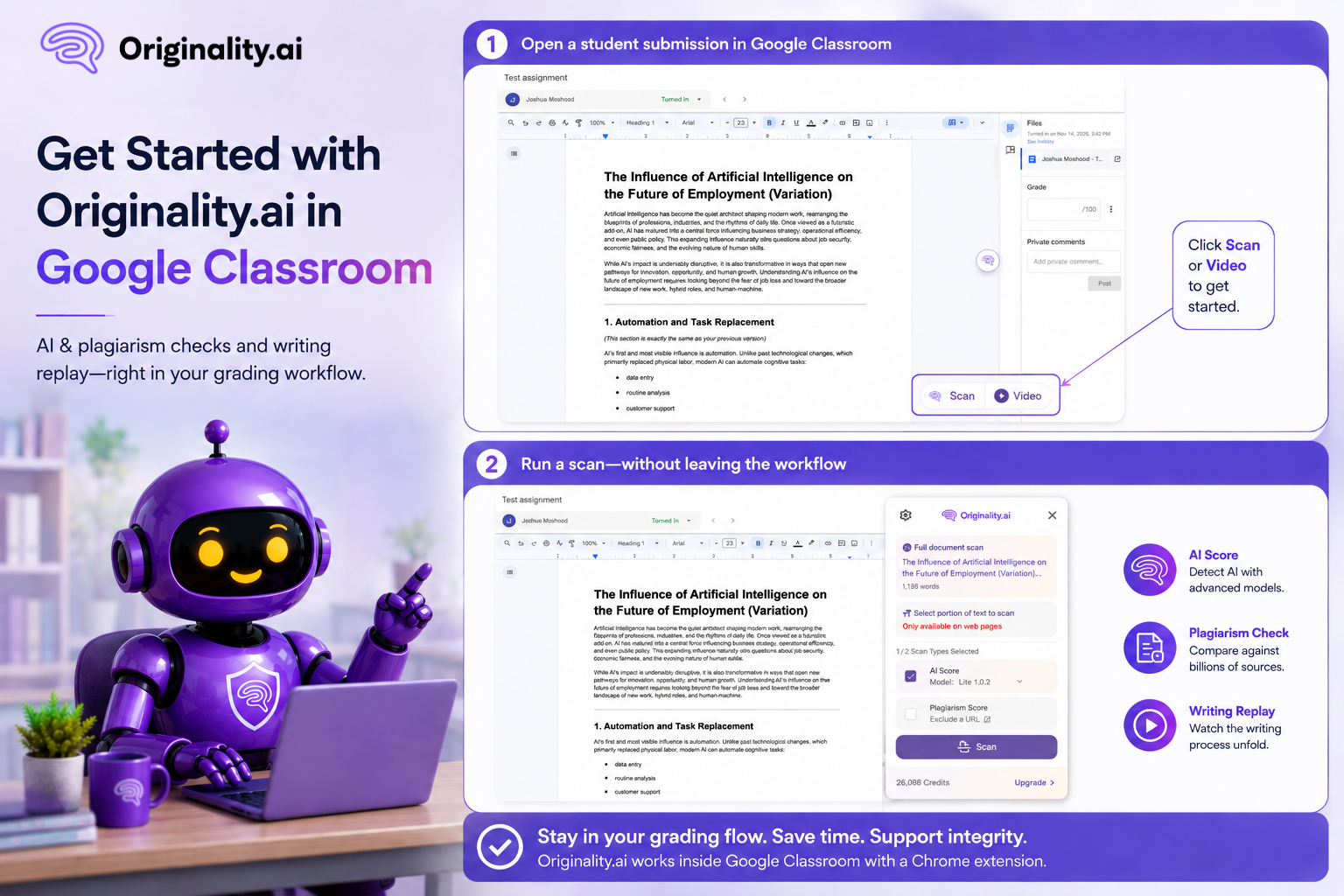
Now, the Originality.ai Chrome Extension provides teachers with a Google Classroom AI detector inside the grading view itself, so they can run AI detection and plagiarism checks without ever leaving the page.
Here, we’ll look at what’s new, how it works, and why it matters for teachers focused on academic integrity.
Download the Originality.ai Chrome Extension today!
At the time of writing this article, Google Classroom does not have a built-in AI detector.
Google Classroom’s native originality reports compare a submission against webpages and books, as well as past student work where possible. They’re useful for flagging uncited text, but they don’t detect AI-generated writing, which is a major gap, considering the rise of AI in education.
As a result, teachers who are searching for AI detection are required to use a third-party tool, which (until now) meant they needed to leave Google Classroom and spend time setting it up separately.
However, thanks to the Originality.ai Chrome Extension, the same checks teachers already run in Google Docs now happen inside Google Classroom.
Here’s a quick breakdown of what’s changed in our recent update:
The widget should feel instantly familiar, too. It mirrors the extension’s Google Docs experience, so the user experience is intuitive, as the checks simply happen where the grading takes place.
The integration is designed to feel like a natural part of grading, rather than another tool you need to manage.
With that in mind, a typical workflow will look something like this:
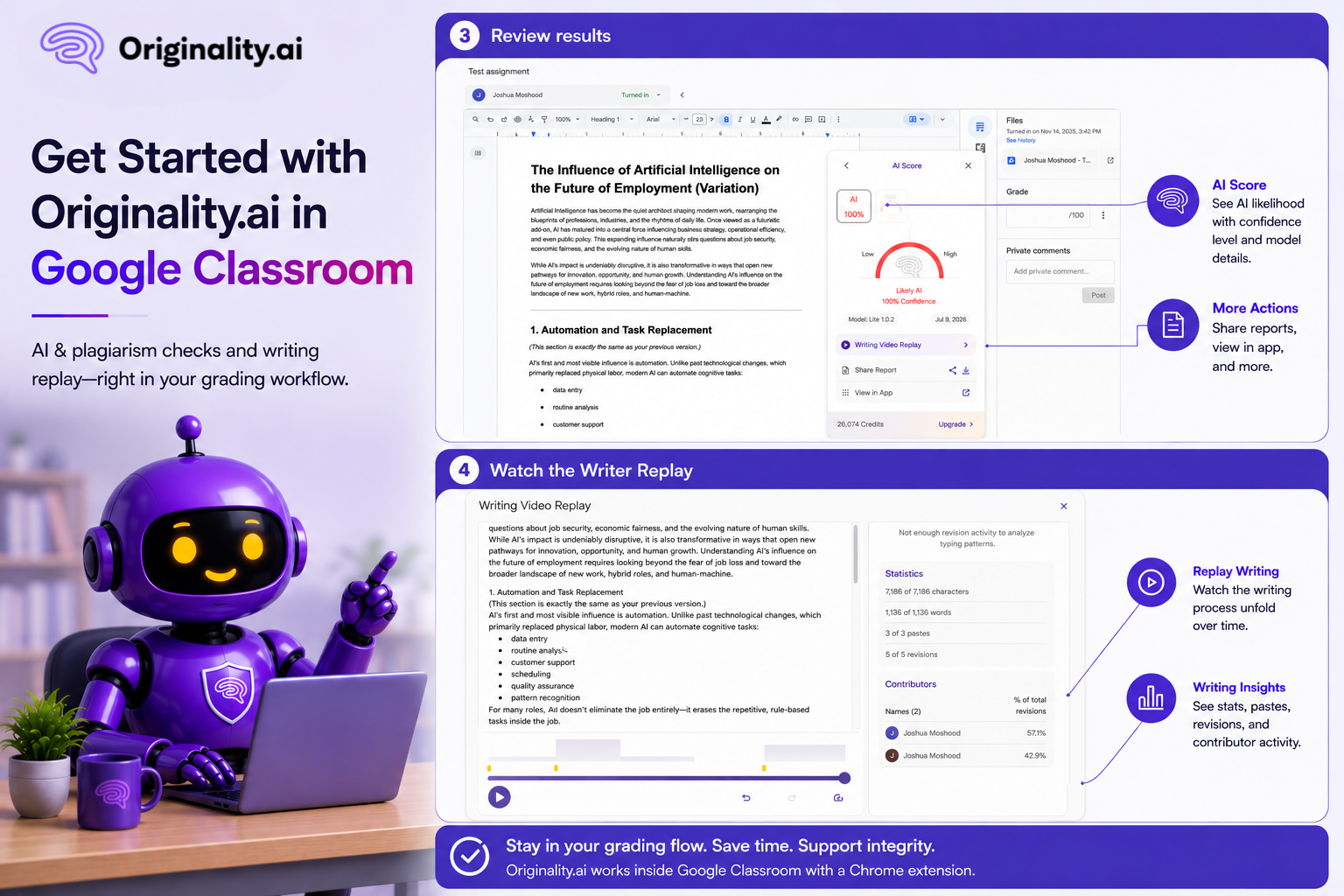
At Originality.ai, we’re clear that an AI detection score shouldn’t be the only measure of academic integrity. It’s one signal, and it works best when paired with human judgment.
That’s where our Writing Video Replay feature comes in handy. Rather than relying on a score alone, teachers can also review:
Think of the replay as additional context, rather than just another score to read.
Plus, the Originality.ai Chrome extension has auto-typing detection, so you can see if a human or bot likely wrote the assignment.
The additional context leads to fairer, better-informed conversations with students.
Every workflow improvement makes a big difference when you’re grading 30, 60, or 100+ submissions in a week.
This update means you can say goodbye to juggling separate tools, as teachers can stay within Google Classroom from the first submission to the last, with fewer clicks per assignment and faster grading overall.
There’s also confidence in the results themselves.
The Originality.ai AI detection tool is 99%+ accurate, has been identified as the most effective AI detector across independent third-party studies, and the plagiarism checker achieved 99.5% accuracy on global plagiarism detection.
All that sounds great on paper, but what does it actually mean for teachers in a real-world scenario?
Let’s say a teacher notices an unusually polished essay from their student whose writing normally looks quite different.
Previously, checking that essay meant opening another website, uploading or pasting the document, running the scan and reviewing the results, all before returning to Google Classroom to pick up where they left off.
Now, that same teacher can simply click on Originality.ai in the grading view within Google Classroom, review the AI and plagiarism results, watch the Writing Video Replay for extra context, and continue grading without any interruptions.
So it’s the same level of diligence, but at a fraction of the clicks, and without losing any momentum between submissions.
One of the top challenges with detecting AI in the classroom is that teachers have had to step outside the workflow where teaching and grading actually happens.
This update makes it easier than ever to check for AI and plagiarism in Google Classroom with Originality.ai!
Download the Originality.ai Chrome Extension to try it in your next grading session, or learn more about Originality.ai for Education.
Use the Moodle LMS instead? Learn more about our Moodle Plugin.
Further Reading:
Yes. With the Originality.ai Chrome Extension installed, the widget appears directly inside Google Classroom’s grading view while you review a student’s Google Doc submission.
No. Google Classroom’s Originality reports feature checks for text that matches webpages, books, and even past student submissions where possible. That’s great for plagiarism checks, but not for AI detection, which is why teachers pair Google Classroom with a dedicated AI detector like Originality.ai. Now, teachers can access Originality.ai to check for AI within Google Classroom.
Yes. Writing Video Replay is available directly from the widget, including a playback of the document being written, plus statistics covering characters, words, pastes, revisions, and contributors.

AI & Plagiarism Detector for Serious Content Publishers
Originality.ai
64 Hurontario St
Collingwood, Ontario
L9Y 2L6